Bike Selector App Embed
- From your Shopify admin, go to Online Store > Themes.
- Find the theme that you want to edit, and then click Customise.
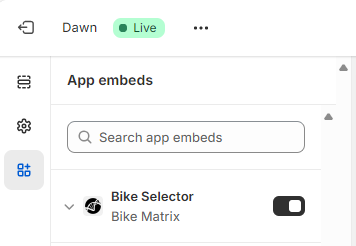
- On the sidebar, click the App embeds icon.
- On the Bike Matrix Bike Selector App Embed click the toggle to activate it:
- If products on the home page should have the Compatibility Check then check ‘Show on Home Page’. For each product displayed on the home page, a check will be made against that product to ensure that it exists in a collection that has compatibility turned on (ie. Brake Pads). If so, a compatibility result will be shown for that product, otherwise it will not. This stops products like t-shirts (which may be shown on the home page) from getting a compatibility check!
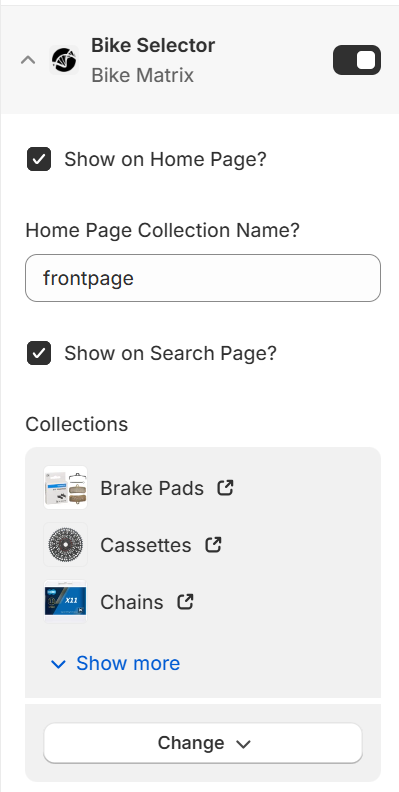
If the Home Page Collection name has changed, you can enter it here. If not, leave it as the default of 'frontpage'.
- Now choose the Collections that you want Bike Matrix compatibility results Displayed on. Click ‘Select Collections’ (or click 'Change' if you have already slected your collections previously). Select the collections, then click 'Select' at the bottom of the panel.
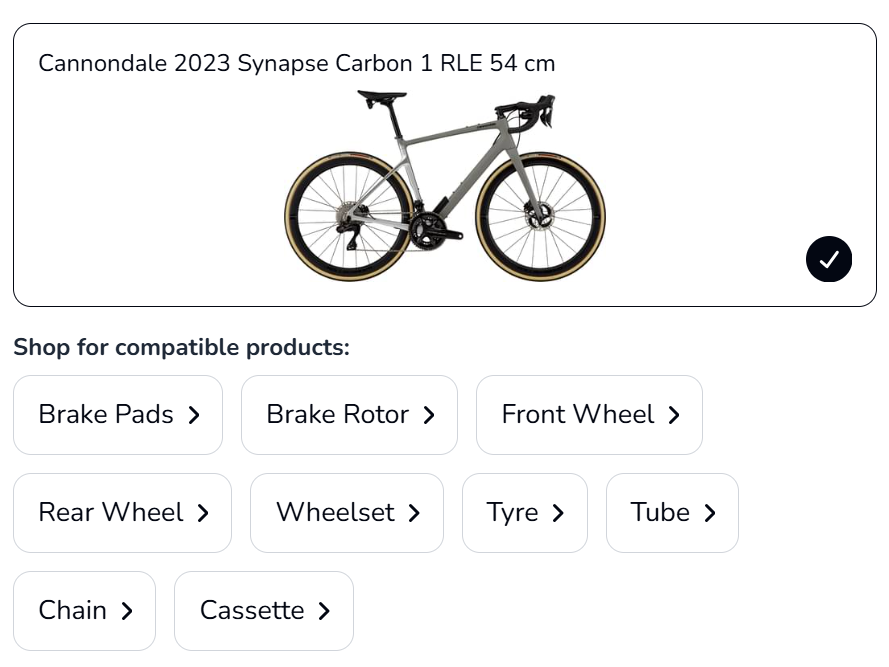
- The next section lets you configure the name of the Collection for each of the Product Categories that Bike Matrix provides compatibility for. When a customer selects a bike in the Bike Selector they have an option to 'Browse Components'. This will show the a list of the components that their selected bike can show compatibility for (based on their selected bike Brand), and will link to the correct collection that you configure here.
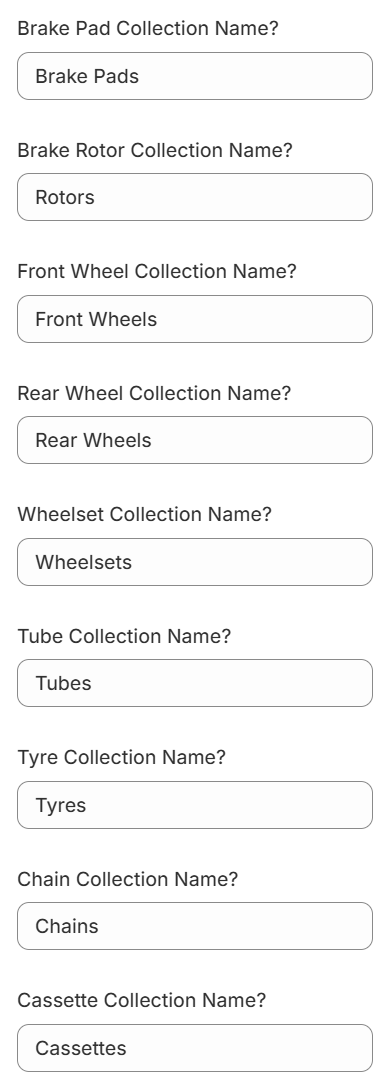
Enter the name of the Collection, exactly as it is shown in the Collections box above (case does not matter). The Collection you enter here must be one of the ones selected in the Collections box above to function correctly. You can leave one or more of the categories empty. They will not be visible when a user selects 'Browse Compatibility' in the Bike Selector. For Shopify stores that have multiple markets, you can enter a comma separated list of collection names. The first available collection will be used for that category.
- Bike Matrix requires a SKU, EAN or UPC which is stored against each prodcut and variant in the SKU, Barcode or a custom Bike Matrix Metafield in your store. If you cannot use the SKU or Barcode field on the Product/Variants because the SKU/EAN/UPC is inconsistently stored across these fields, and you cannot modify the data in these fields to be consistent, then you can create a Bike Matrix Metafield and store the SKU, EAN or UPC in this field. In the settings panel, choose whether your store uses SKU, Barcode or Bike Matrix Metafield.