Bike Icon in Header
To allow customers to select their bike, you need to add the Bike Matrix Bike Icon to the Header:

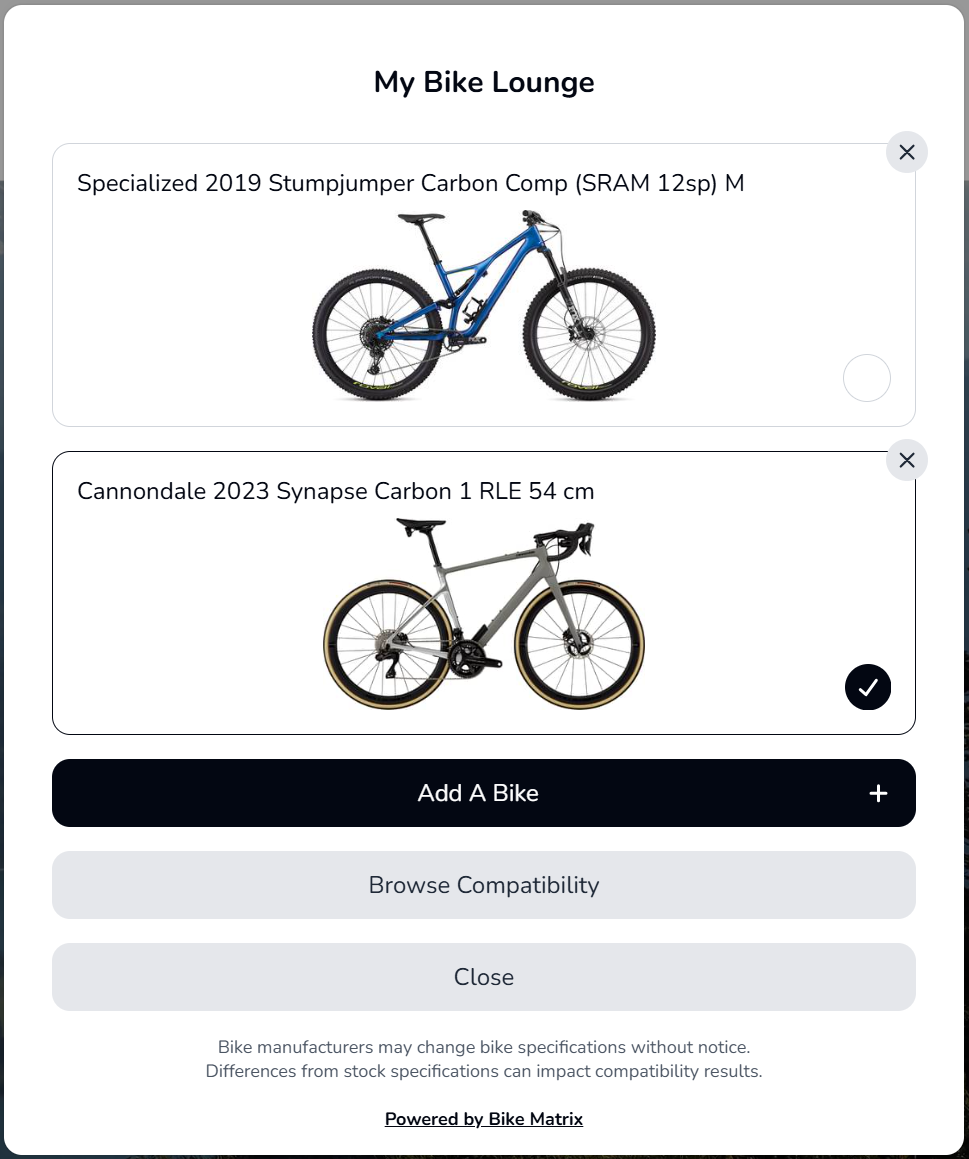
Clicking this will bring up the Bike Selector/Bike Lounge:
If your Theme supports adding App Blocks to the Header, follow these steps.
Add the Bike Matrix ‘Bike Header’ App Block.
- From your Shopify admin, go to Online Store > Themes.
- Find the theme that you want to edit, and then click Customise.
- On the sidebar, click the Sections icon.
- On the Home Page templage, under the 'Header' section, click 'Add block' to add the Bike Header block from the Apps tab:
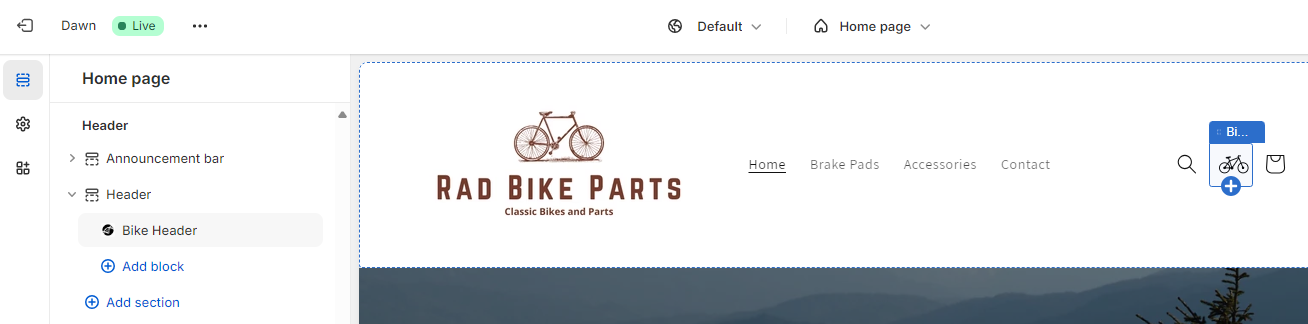
- In the settings panel for the Bike Header, Tick the 'Show Custom Icon?' check box if you want to add custom configuration of the Icon including Width, Height, SVG Icon and Colour.
If your Theme does not support adding an App Block to the header, follow these steps to edit the Theme code.
Note: you may need a Shopify Partner to help edit the code. Get in touch with us and we can help.
- From your Shopify admin, go to Online Store > Themes.
- Click ... > Edit code.
Find the location of the header code (ie. header.liquid or header-icons.liquid) and in the appropriate location add the following html block:
<bikematrix-bikon data-color='#000'></bikematrix-bikon>