Shopify Introduction
Thank you for installing the Bike Matrix App! This page describes the process for getting the App up running on your Storefront. Once you’ve selected and installed the Bike Matrix App from the Shopify App Store you will be taken to your Bike Matrix Dashboard. It is there that you will start your onboarding journey. There are four initial steps that are required to successfully install the Bike Matrix App. They are shown on the left side of the page:
- Collection Mapping
- SKU Count
- Site Visits
- Monthly Plans
This documentation will walk you through each of the steps in order to get you up and running in as easy a manner as possible.
Collection Mapping
The first step is to map Collections from your Shopify store to the available Categories within Bike Matrix. Examples of Bike Matrix Categories include Tyre, Tube, Chainring, and Rear Wheel. There are XX different categories within the Bike Matrix App which map to the most common bicycle parts.Choose a Collection, such as Tyres, that you’d like to start with. When you place your cursor within the “Search collections” field you will then have the ability to start to type the name of your store Collection that will map to the Bike Matrix Category. With Tyres, for example, you may have a “Tyres” Collection. If you start typing the Collection name, such as “Tyres”, the field will automatically filter your store’s Collections.
It is possible to map more than one Collection to a Bike Matrix Category. You may have a Collection for Mountain Bike Tyres and another for Road Bike Tyres. Choose the ones that best fit the Bike Matrix Category and that you wish to allow your customers to check parts compatibility using the Bike Matrix App. If there are some you are unsure of, you can always map more of your Collections to Bike Matrix categories later!
Once done, click on the “Continue” button to proceed to “SKU Count.”
SKU Count
The SKU Count is an automated system which processes the store Collections that you added to the Bike Matrix App. For each Bike Matrix Category, it goes through the Collection(s) selected and checks for matching barcodes or original Manufacturer Part Numbers. Every product found within Bike Matrix adds to the SKU Count. Unrecognized products will be sent to the Bike Matrix team for additional processing. If the product is manually added to or matched within the Bike Matrix Product Database it will be added to your SKU Count.
This is important for two reasons. First, it allows you to more easily visualize which of your store Collections you will be checking compatibility with. Second, it lets you know how many parts in total those Collections encompass.
If you wish to add or remove Collections from the Bike Matrix App, you can click the “Previous” button. Otherwise, click “Continue”.
Site Visits
The final step is to enter your Shopify store’s monthly site visits. Bike Matrix uses this, along with the SKU count, to help you choose which monthly plan is best suited for your needs. To get the monthly site visits for your store, click on the “View Analytics Dashboard” found underneath the sample traffic graph.
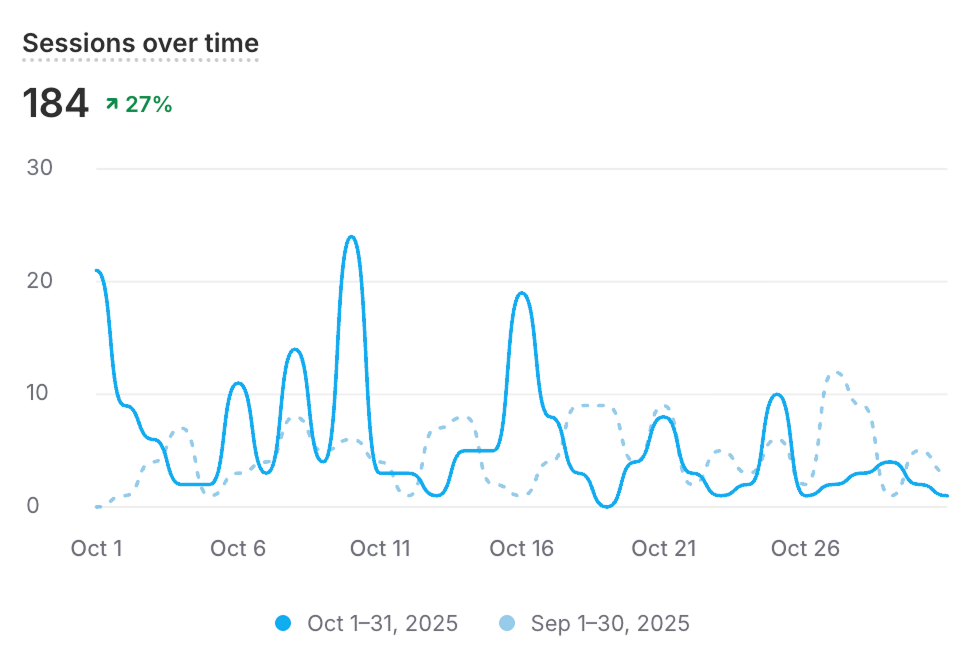
If you use a commercial traffic reporting service other than the one provided by Shopify, you may use that as well.
Once you have the monthly site visits, enter it in the “Site Visits Per Month” field. Then click “Continue”.
Subscription
Using the number of SKUs and monthly visits, Bike Matrix creates a forecast of possible daily and monthly parts compatibility checks that your store will use. We then recommend a plan for your subscription. Make note of the plan presented, so that you will be able to select the right one on the next screen. Then click on the “Review Plans” button. This will take you to a Shopify purchase screen in which you will see all four subscription plans. Select the plan from the prior screen to purchase your subscription.
Please note: If you select a lower traffic plan that your SKUs and site traffic exceeds, Bike Matrix will request that you upgrade to a more appropriate plan. Not doing so will run the risk of having your subscription cancelled.
Once you have subscribed to a plan, you can begin the technical aspects of installing the Bike Matrix App which are detailed in the next section.